

30-Day Backup & Disaster Recovery Plan for SMBs

30-Day Backup & Disaster Recovery Plan for SMBs
If a ransomware attack hit your business tonight, how long would it take to get back online? For most small and mid-sized businesses in Central Florida, the honest answer is: too long. This guide gives you a practical, week-by-week 30-day backup and disaster recovery IT plan for SMBs — one you can actually execute, whether you handle it in-house or bring in a local IT team to do it right the first time.
Who This Plan Is For — and Who It Is Not
This plan is built for you if:
- You own or manage a business in Central Florida with 5 to 150 employees.
- You rely on Microsoft 365, QuickBooks, a CRM, or any line-of-business application to operate daily.
- You have experienced an outage, a ransomware scare, or a hardware failure in the past two years.
- You have a backup solution in place but have never actually tested a restore.
- You are moving to a new office, adding staff, or upgrading infrastructure and want to do it right.
This plan is NOT for you if:
- You are a solo freelancer with no employees and no client data stored locally.
- Your entire operation runs on consumer cloud apps with no local servers or endpoints to protect.
- You are looking for a one-click automated tool that requires zero IT involvement — that product does not exist at the SMB level without risk.

Backup & Disaster Recovery Approach Comparison
Before you start the 30-day plan, understand what you are choosing between. This table compares the most common approaches Florida SMBs use today.
| Approach | Typical Cost | Recovery Speed | Documentation | Testing | Local Support | Best For |
|---|---|---|---|---|---|---|
| Managed IT (Mynians) | Flat monthly rate | Availability and timing per written scope | Full, maintained | Scheduled, verified | Yes — real local techs | SMBs that cannot afford downtime |
| National MSP / Remote-Only | Variable | Moderate | Inconsistent | Sometimes | No — overseas or call center | Businesses comfortable with remote-only support |
| DIY / In-House IT | Low upfront, high risk | Slow — no defined RTO | Rarely complete | Rarely done | Depends on staff skill | Businesses with a dedicated, experienced IT team |
| Break-Fix Only | Unpredictable | Very slow | None | Never | Reactive only | Businesses willing to accept extended downtime |
| Consumer Cloud Backup (Dropbox, etc.) | Low | Partial — files only | None | None | None | Personal use, not business-critical systems |
Week 1: Audit Your Current State (Days 1–7)
You cannot build a recovery plan without knowing what you are recovering. Week one is about honest assessment — no assumptions.
Day 1–2: Inventory Every Critical System
List every server, workstation, network-attached storage device, cloud application, and VoIP phone system your business depends on. Include Microsoft 365 data, QuickBooks files, your CRM, and any industry-specific software. If you are in Orlando, Tampa, or Winter Garden and running a hybrid environment — some on-premise, some cloud — document both sides.
Day 3–4: Define Your RTO and RPO
Your Recovery Time Objective (RTO) is how long your business can survive without a system before revenue or operations are seriously impacted. Your Recovery Point Objective (RPO) is how much data loss is acceptable — measured in hours or days. A law office may have an RPO of four hours. A retail shop may tolerate 24 hours. Write these numbers down. They drive every decision in the rest of this plan. The NIST Cybersecurity Framework provides a solid foundation for defining these objectives.
Day 5–7: Audit Existing Backups
Check whether your current backups are actually running. Look at the last successful backup timestamp. Check whether backup logs show errors. Verify that backup files are stored offsite or in the cloud — not just on the same server being backed up. Many Florida businesses discover during this step that their backup solution has been silently failing for months.
Week 2: Implement Your Backup Stack (Days 8–14)
With your audit complete, week two is about putting the right systems in place. The industry standard is the 3-2-1 rule: three copies of your data, on two different media types, with one copy stored offsite. The Cybersecurity and Infrastructure Security Agency (CISA) recommends this approach for all organizations.
Day 8–10: Deploy Local and Cloud Backup
Install a business-grade backup agent on every server and critical workstation. Configure local backup to a NAS or external drive for fast restores. Configure cloud backup to an encrypted offsite repository for ransomware resilience. Make sure backup jobs run at intervals that match your RPO — if your RPO is four hours, your backup frequency must be four hours or less.
Day 11–12: Protect Microsoft 365 and Cloud Data
Microsoft 365 does not automatically back up your email, SharePoint, or Teams data in a way that supports point-in-time restores. You need a third-party backup solution for Microsoft 365. This is one of the most overlooked gaps in SMB backup strategies. Check official Microsoft documentation to understand the shared responsibility model.
Day 13–14: Segment and Isolate Backup Systems
Ransomware targets connected backup drives. Ensure your backup destination is not accessible from the same network segment as your production systems. Immutable cloud backups — where data cannot be overwritten or deleted for a defined period — add a critical layer of protection. Your IT team or MSP should configure this, not leave it at default settings.
Week 3: Document, Test, and Validate (Days 15–21)
This is the week most businesses skip. It is also the most important. A backup that has never been tested is not a backup — it is a hope.
Day 15–17: Write Your Disaster Recovery Runbook
A DR runbook is a step-by-step document that tells any qualified technician exactly what to do when a system fails. It should include: which systems to restore first, where backup credentials are stored, who to call, and in what order systems come back online. Store this document somewhere accessible even if your primary systems are down — a printed copy in a secure location and a copy in a cloud drive your team can reach from any device.
Day 18–19: Run a Full Restore Test
Restore a critical system from backup in a test environment. Verify that the restored data is complete, uncorrupted, and functional. Time the restore. Compare that time against your RTO. If the restore takes six hours and your RTO is two hours, you have a problem to solve before a real disaster forces the issue.
Day 20–21: Test Your Communication Plan
Who notifies staff during an outage? Who contacts clients? Who calls your IT provider? Document the chain of communication and run a tabletop exercise — a simple walkthrough where your team talks through what they would do if systems went down at 8 a.m. on a Monday. The FTC’s guidance on data security recommends regular staff training as part of any business continuity plan.
Week 4: Harden and Maintain (Days 22–30)
The final week shifts from setup to sustainability. A DR plan that is not maintained becomes outdated within months.
Day 22–24: Patch, Update, and Harden Endpoints
Outdated software is the most common ransomware entry point. Ensure all servers, workstations, and network devices are running current firmware and security patches. Enable multi-factor authentication on every account that touches your backup systems, Microsoft 365, and remote access tools.
Day 25–27: Review Network Segmentation and Access Controls
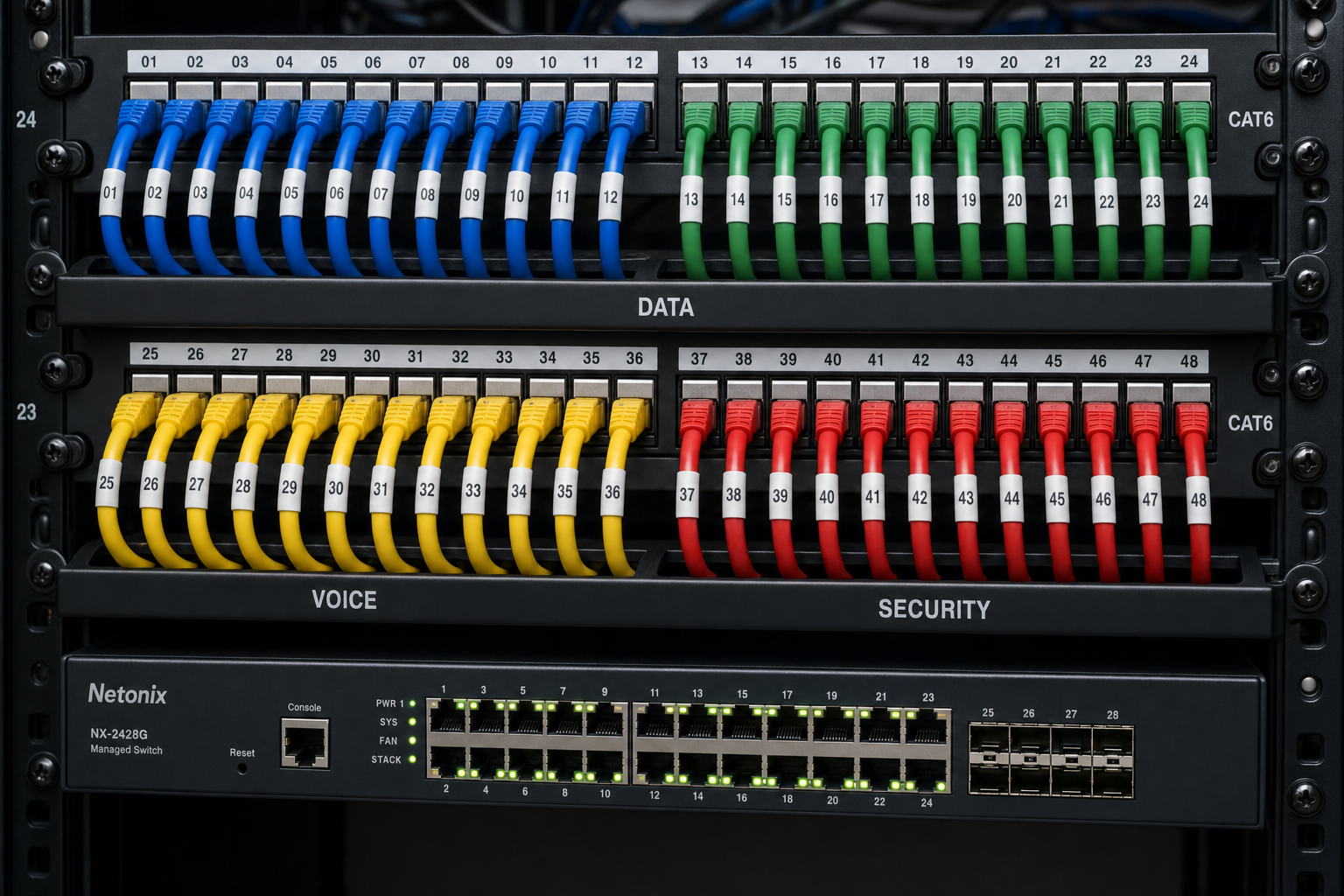
Limit who can access backup systems and critical servers. Use the principle of least privilege — staff should only have access to what they need to do their job. Review firewall rules and ensure your backup traffic is encrypted in transit. If your network closet in Orlando or Winter Garden looks like a bowl of spaghetti, that is a cabling and documentation problem that directly affects your ability to recover quickly.
Day 28–30: Set a Recurring Maintenance Schedule
Schedule monthly backup log reviews, quarterly restore tests, and an annual full DR plan review. Assign ownership — someone specific is responsible for each task. If that person leaves, the plan must transfer to their replacement. Document it. These services require a separate written backup and recovery scope; do not assume SMBs will recover faster solely because they have an MSP subscription. Recovery times and outcomes are not guaranteed.
Common Mistakes That Kill Recovery Plans
- Backing up to the same physical location: One flood or fire takes out your production system and your backup simultaneously.
- Never testing restores: Backup software can run without errors and still produce corrupted or incomplete restore files.
- Ignoring Microsoft 365 data: Email, SharePoint, and Teams data are not automatically protected against accidental deletion or ransomware without a third-party backup layer.
- No defined RTO or RPO: Without these numbers, you have no way to measure whether your plan actually works.
- Vendor finger-pointing: When your backup vendor, your ISP, and your hardware vendor all blame each other during an outage, recovery stalls. One team managing all layers eliminates this problem.
- Outdated runbooks: A DR document written two years ago that does not reflect your current systems is worse than no document — it sends your team in the wrong direction during a crisis.
Why Local IT Support Matters for Florida SMBs
Remote-only IT support has real limits when disaster strikes. If a server fails, a network switch goes down, or your structured cabling is damaged after a storm, you need a technician on-site — not someone reading from a script in an overseas call center.
Mynians serves businesses across Central Florida, including Winter Garden, Orlando, Tampa, Miami, and Jacksonville. Our team handles managed IT, hosted VoIP, structured cabling, and cybersecurity under one roof. That means when something goes wrong, there is no vendor finger-pointing. One call, one team, real answers.
The MSP base covers proactive security, monitoring, and automated maintenance. Emergency recovery work and user-requested helpdesk labor are billed separately under Schedule B, including applicable after-hours rates. Cloud backup requires a separate written quote.
If your business is in Central Florida and you are ready to move from a hope-and-pray backup strategy to a documented, tested, and monitored DR plan, reach out to the Mynians team at https://mynians.com/contact-us/ or call (407) 374-2782.
Frequently Asked Questions
How long does it actually take to build a working backup and disaster recovery plan?
With the right tools and a local IT team handling implementation, 30 days is a realistic timeline for most SMBs. The audit and planning phase takes about a week. Deployment takes another week. Testing and documentation fill week three. Week four is hardening and setting up ongoing maintenance. If you are starting from scratch with no existing backup infrastructure, budget a few extra days for procurement and configuration.
What is the difference between RTO and RPO?
RTO — Recovery Time Objective — is how long your business can tolerate being offline before the impact becomes unacceptable. RPO — Recovery Point Objective — is how much data loss you can accept, measured in time. If your RPO is four hours, your backups must run at least every four hours. Both numbers must be defined before you build your backup strategy, not after a failure forces the question.
Does Microsoft 365 back up my email and files automatically?
Microsoft 365 provides some data redundancy and short-term recycle bin functionality, but it does not offer the point-in-time restore capability most businesses need for true disaster recovery. If a ransomware attack encrypts your SharePoint files or a staff member accidentally deletes a year of email, Microsoft’s native tools may not be enough. A third-party backup solution for Microsoft 365 is strongly recommended for any business that depends on that data.
How often should we test our disaster recovery plan?
At minimum, run a restore test quarterly and a full tabletop DR exercise annually. Any time you make a significant change to your infrastructure — new server, new application, office move, staff changes — review and update your DR plan and runbook. Backup logs should be reviewed monthly to catch silent failures before they become real problems.
How are managed IT, backup, and disaster recovery priced?
Mynians publishes MSP base rates; all user-requested support is billed separately under Schedule B and additional services require written quotes. The exact cost depends on the size of your environment, the number of endpoints, and the services included. The best way to get an accurate number is to request a free IT assessment — Mynians will review your current setup and give you a straight answer on what a managed IT engagement would look like for your specific business.
Can Mynians help if we already have a backup solution in place?
Yes. Mynians can audit your existing backup setup, identify gaps, run a restore test, and either optimize what you have or recommend a better fit. Many businesses come to Mynians after discovering their existing backup solution was not configured correctly or had been failing silently. Starting with an honest assessment is always the right first step.
Update Log
- May 2026: Created and reviewed for Mynians managed IT, hosted VoIP, and structured cabling accuracy.
Next step
Ready to see what managed IT would cost your business?
Calculate your MSP base in about a minute, review the written agreement, and sign online, or call the Winter Garden team and talk it through first.