

Microsoft 365 MFA Cybersecurity Plan for 30 Users

Once your Microsoft 365 environment grows past 30 users, the security stakes change. More accounts mean more attack surface, more password reuse, and more chances for a phishing email to become a full breach. A structured multi-factor authentication plan is no longer optional — it is the baseline. This guide gives operations leaders a practical, step-by-step MFA cybersecurity plan built for real Florida businesses running Microsoft 365 at scale.
Why 30 Users Is the Threshold
Below 30 users, many businesses get by with Microsoft’s Security Defaults — a basic MFA toggle that applies to all accounts with no customization. It is better than nothing, but it is blunt. It does not account for shared accounts, service accounts, legacy applications, or role-based risk levels.
Once you cross 30 users, you typically have department heads, finance staff, HR, and at least one or two admin accounts with elevated permissions. You may have shared mailboxes, third-party integrations, and staff who travel or work from multiple locations. Security Defaults cannot handle that complexity cleanly. Conditional Access policies can.
According to CISA, compromised credentials remain one of the leading causes of business data breaches. MFA blocks the vast majority of automated credential attacks when implemented correctly. The word “correctly” is doing a lot of work in that sentence — and that is exactly what this plan addresses.
Who This Is For — and Who It Is Not
This guide is for you if:
- You manage or oversee Microsoft 365 for a team of 30 or more in Central Florida
- You are using Microsoft 365 Business Basic, Standard, or Premium
- You have not yet moved beyond Security Defaults or per-user MFA toggles
- You have experienced a phishing attempt, a compromised account, or a failed audit
- You are planning an office move, a staff expansion, or a compliance review
This guide is NOT for you if:
- You are running fewer than 10 users with no sensitive data or compliance requirements
- You already have a fully documented Conditional Access policy set, Entra ID Protection active, and a managed IT team reviewing logs
- You are on Microsoft 365 Enterprise E3 or E5 with a dedicated internal IT security team
MFA Rollout Options Compared
| Option | Setup Quality | Ongoing Monitoring | User Support | Documentation | Best For |
|---|---|---|---|---|---|
| Mynians Managed IT (local) | Structured, policy-based | Yes, active | Real local techs | Clean, maintained | 30–150 seat Florida businesses |
| National MSP / Remote-only | Variable | Sometimes | Overseas or tiered queue | Inconsistent | Businesses comfortable with no local presence |
| DIY / Internal IT | Depends on staff skill | Rarely consistent | Internal only | Often missing | Teams with a dedicated, experienced IT admin |
| Break-Fix / On-Call Only | Reactive, not proactive | No | When called | Rarely exists | Very small offices with minimal risk exposure |
| Microsoft Self-Serve (Security Defaults) | Basic toggle only | No | Microsoft support queue | None provided | Under-10-user environments with low complexity |
The MFA Cybersecurity Plan: Step by Step
Step 1 — Audit Every Identity in Your Tenant
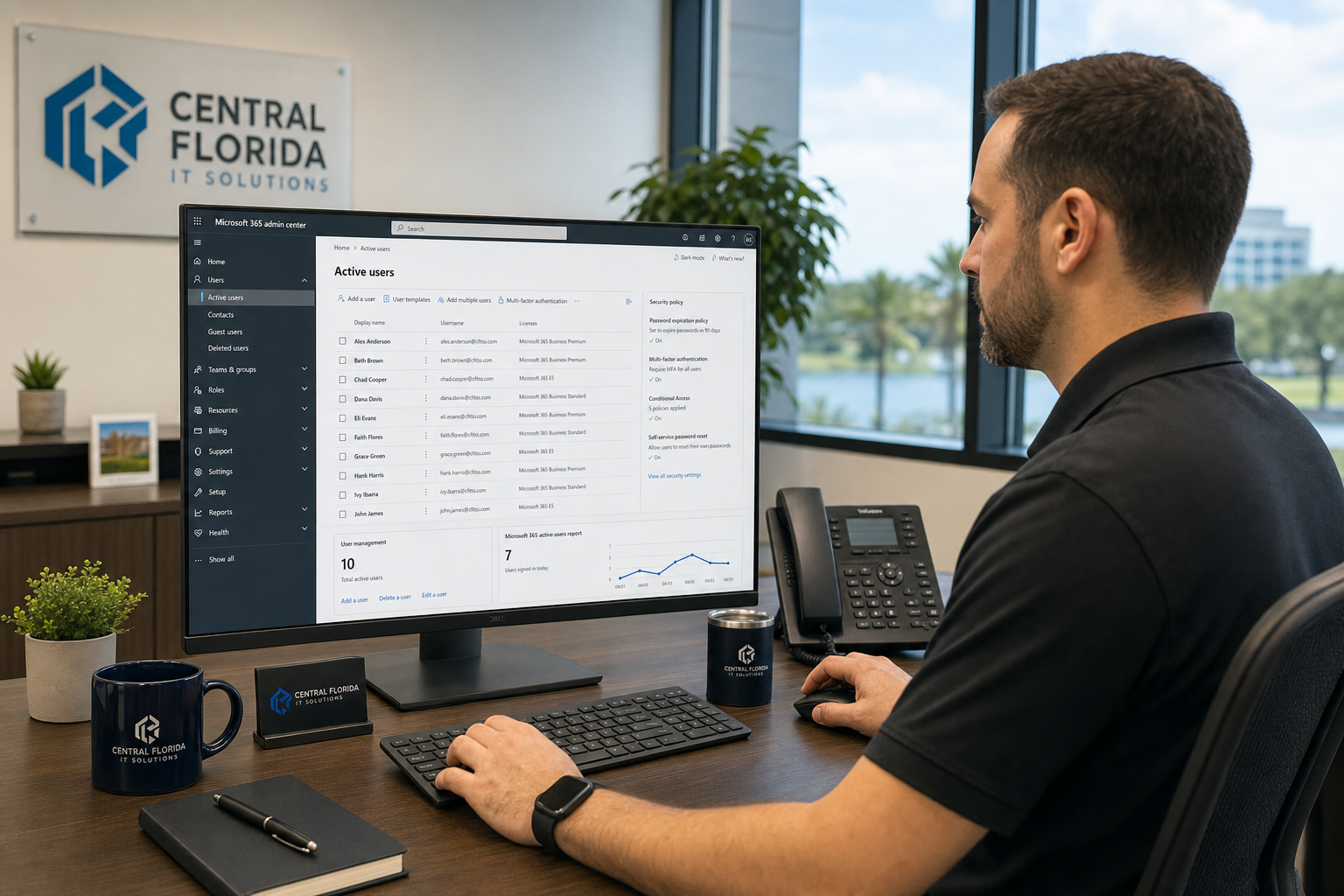
Before enabling anything, pull a full list of all accounts in your Microsoft 365 tenant. This includes licensed users, unlicensed accounts, shared mailboxes, distribution groups, guest accounts, and service accounts used by third-party apps. Many businesses with 30 to 80 users discover they have 20 to 40 accounts they did not realize were still active. Stale accounts are open doors.
Use the Microsoft 365 Admin Center and the Microsoft Entra admin center to export your full identity list. Flag every account by role, risk level, and whether it is used by a human or an application.
Step 2 — Disable Legacy Authentication Protocols
Legacy authentication protocols — IMAP, POP3, SMTP AUTH, and older Exchange ActiveSync connections — do not support MFA. If you leave them enabled, an attacker who steals a password can bypass MFA entirely by connecting through a legacy protocol. Block them with a Conditional Access policy before you do anything else.
This step alone stops a significant category of credential-stuffing attacks. It may also break older printers, scanners, or line-of-business apps that use basic authentication to send email. Identify those devices first so you can migrate them to modern authentication or a dedicated send connector before the block goes live.
Step 3 — Deploy Microsoft Authenticator to All Users
Microsoft Authenticator is the recommended MFA method for Microsoft 365. It supports number matching and additional context prompts, which reduce MFA fatigue attacks — a technique where attackers spam approval requests until a tired user taps “approve.”
Roll out the app in phases. Start with IT staff and department heads, then move to the broader team. Give users clear written instructions and a deadline. Plan for the staff members who will need hands-on help — there are always a few, and that is not a criticism, it is just reality. Budget time for it.
Step 4 — Build Conditional Access Policies
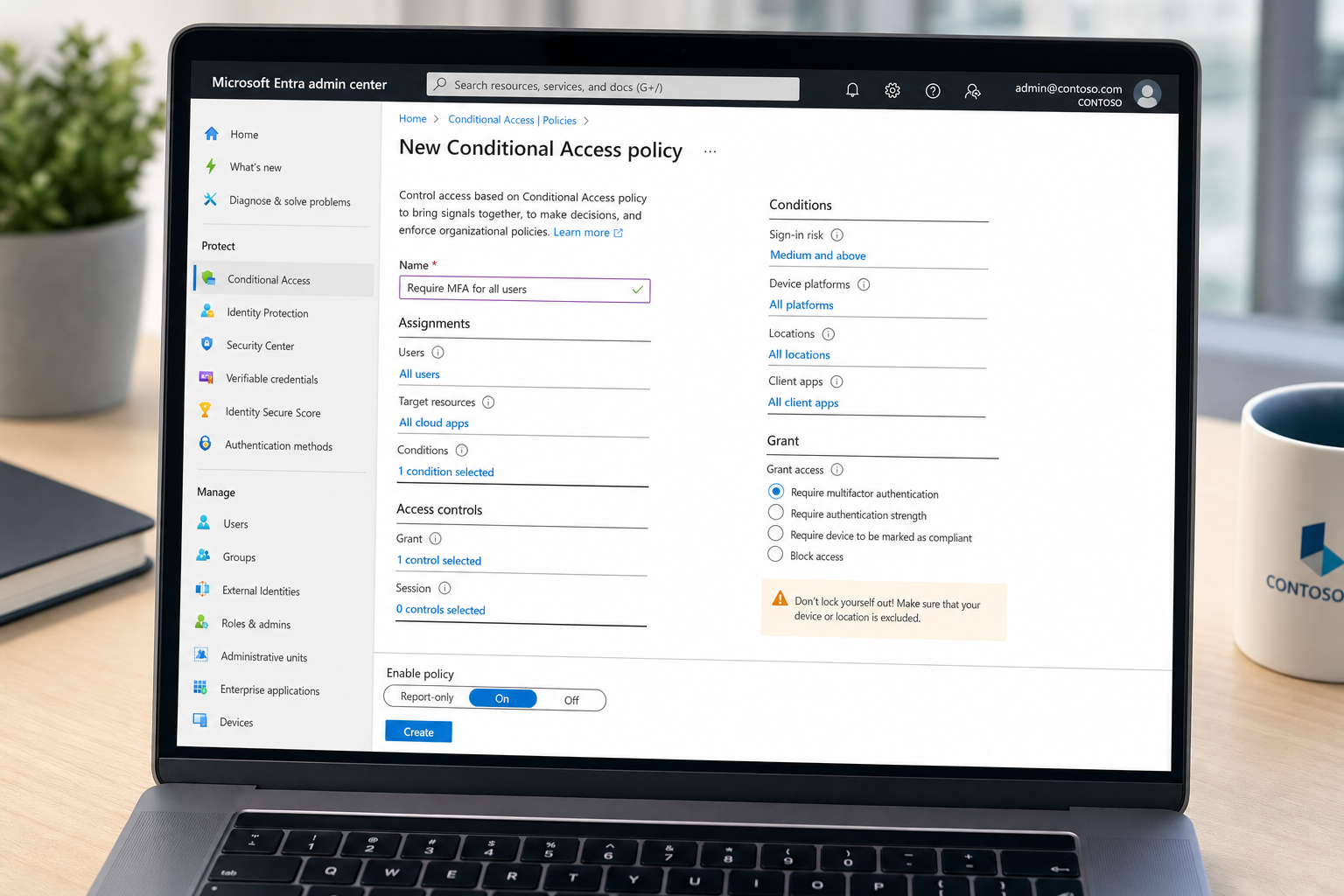
Conditional Access is the engine of a mature Microsoft 365 security posture. It lets you require MFA based on user role, location, device compliance, and risk level rather than applying a blunt all-or-nothing toggle.
A practical starting policy set for a 30-to-100 user business includes:
- Require MFA for all users on all cloud apps
- Require MFA always for admin roles, with no exceptions
- Block legacy authentication across all apps
- Require compliant or hybrid-joined devices for access to sensitive apps
- Block sign-ins from high-risk locations or flagged IP ranges
Test every policy in report-only mode before enforcing it. Skipping this step is how businesses accidentally lock out their entire team on a Monday morning.
Step 5 — Harden Admin Accounts Separately
Admin accounts are the highest-value targets in your tenant. They should never be used for day-to-day email or browsing. Every admin should have a separate, dedicated admin account with a strong unique password, MFA enforced, and Privileged Identity Management (PIM) enabled if your license supports it. PIM requires admins to activate elevated permissions on demand rather than holding them permanently.
Also create and document a break-glass account — an emergency admin account stored securely offline — so that a misconfigured Conditional Access policy does not permanently lock you out of your own tenant.
Step 6 — Enable Identity Protection and Sign-In Monitoring
Microsoft Entra ID Protection (risk-based policies require Microsoft Entra ID P2 or a suite containing it; Business Premium alone does not include those policies) monitors sign-in behavior and flags risky logins automatically. Configure it to require MFA step-up or block access when a sign-in is flagged as high risk. Set up alerts so someone on your team — or your managed IT provider — is notified when anomalous activity occurs.
Review sign-in logs at least monthly. Look for failed MFA attempts, sign-ins from unexpected countries, and accounts generating unusual activity. The NIST Cybersecurity Framework emphasizes continuous monitoring as a core function — not a one-time setup task.
Step 7 — Document Everything and Train Your Team
A security plan that lives only in someone’s head is not a plan. Document your Conditional Access policies, your admin account inventory, your break-glass procedure, and your MFA enrollment status by user. Update that documentation every time something changes.
Run a short security awareness session with your team. Cover how to recognize phishing emails, what to do if they receive an unexpected MFA prompt, and who to call if something looks wrong. Staff who understand why MFA exists are far more likely to cooperate with the rollout and report suspicious activity.
Common Mistakes That Create Gaps
Enabling MFA Without Blocking Legacy Auth
This is the most common error. MFA is on, but legacy protocols are still open. Attackers simply route around MFA using those older connection methods. The block must happen first or simultaneously.
Forgetting Shared Mailboxes and Service Accounts
Shared mailboxes used by multiple staff members and service accounts used by apps often get skipped during MFA rollouts. They need to be handled deliberately — either converted to modern authentication, assigned app passwords under a controlled policy, or migrated to application-based authentication flows.
No Report-Only Testing Phase
Pushing Conditional Access policies live without testing in report-only mode first is how businesses lock out entire departments. Always test, review the sign-in logs, and confirm expected behavior before enforcing.
No Break-Glass Account
If a misconfigured policy locks out all global admins, you need a way back in. A properly documented break-glass account stored securely is not optional — it is the safety net that prevents a security project from becoming a business outage.
One-and-Done Mentality
MFA rollout is not a project you finish and forget. New users get added, old accounts go stale, policies need updates, and Microsoft releases new security features regularly. Ongoing management is what keeps the plan working.

Why Local IT Support Matters for This Rollout
Businesses in Orlando, Winter Garden, Tampa, Miami, and Jacksonville all face the same core challenge: Microsoft 365 security configuration is not simple, and the cost of getting it wrong is real. A compromised account can mean stolen data, wire fraud, ransomware, or regulatory exposure depending on your industry.
What a local managed IT provider like Mynians brings to this rollout that a remote-only or DIY approach does not:
- An on-site audit of your current environment before any changes are made
- Hands-on user enrollment support so staff are not left to figure out the Authenticator app alone
- Clean documentation of every policy, every admin account, and every exception
- A single team that also handles your network, cabling, and VoIP — so there is no vendor finger-pointing when something breaks
- Microsoft 365 rollout and licensing priced in a separate written scope; changes and additional labor quoted separately
When a Conditional Access policy breaks a line-of-business app at 8 a.m. on a Tuesday, you want a real tech who knows your environment — not a ticket queue routed overseas. That is the practical difference.
The FTC’s cybersecurity guidance for businesses consistently points to MFA and access controls as foundational protections. Having a local team implement and maintain those controls is how you make sure they actually work in your specific environment.
Frequently Asked Questions
Do I need Microsoft 365 Business Premium to run Conditional Access?
Conditional Access requires at least Microsoft Entra ID P1, which is included in Microsoft 365 Business Premium. If you are on Business Basic or Business Standard, you can add Entra ID P1 as an add-on license. For most 30-to-150 seat businesses, upgrading to Business Premium is the most cost-effective path because it also includes Intune device management and Defender for Business.
How long does an MFA rollout take for a 30-to-60 user business?
A structured rollout — including tenant audit, legacy auth blocking, Authenticator deployment, Conditional Access policy build and testing, and admin hardening — typically takes two to four weeks when done properly. Rushing it compresses that timeline but increases the risk of user lockouts and missed gaps. A phased approach with a report-only testing period is always worth the extra time.
What happens to shared mailboxes when MFA is enforced?
Shared mailboxes in Microsoft 365 are not assigned licenses and cannot complete an interactive MFA prompt on their own. When Conditional Access is enforced, access to shared mailboxes is handled through the delegated permissions of the licensed users who access them — those users authenticate with MFA, and the shared mailbox is accessed through their session. Direct SMTP or legacy connections to shared mailboxes must be migrated or handled through a dedicated send connector.
Can MFA be bypassed by attackers?
MFA significantly raises the difficulty of account compromise, but it is not absolute. MFA fatigue attacks, adversary-in-the-middle phishing kits, and SIM-swapping can bypass weaker MFA methods like SMS codes. This is why Microsoft Authenticator with number matching is recommended over SMS, and why Conditional Access policies that evaluate device compliance and sign-in risk add important additional layers.
What does Mynians charge for a Microsoft 365 MFA rollout?
Microsoft 365 security rollouts and required licenses are outside the MSP base and require a separate written quote. User-requested support is billed under Schedule B unless expressly included in that quote. The specific cost depends on your seat count, current configuration, and what is already in place. The best starting point is a free IT assessment where we review your current environment and give you a clear scope. Call us at (407) 374-2782 or visit our contact page to get started.
Update Log
- May 2026: Created and reviewed for Mynians managed IT, hosted VoIP, and structured cabling accuracy.
Next step
Ready to see what managed IT would cost your business?
Calculate your MSP base in about a minute, review the written agreement, and sign online, or call the Winter Garden team and talk it through first.