
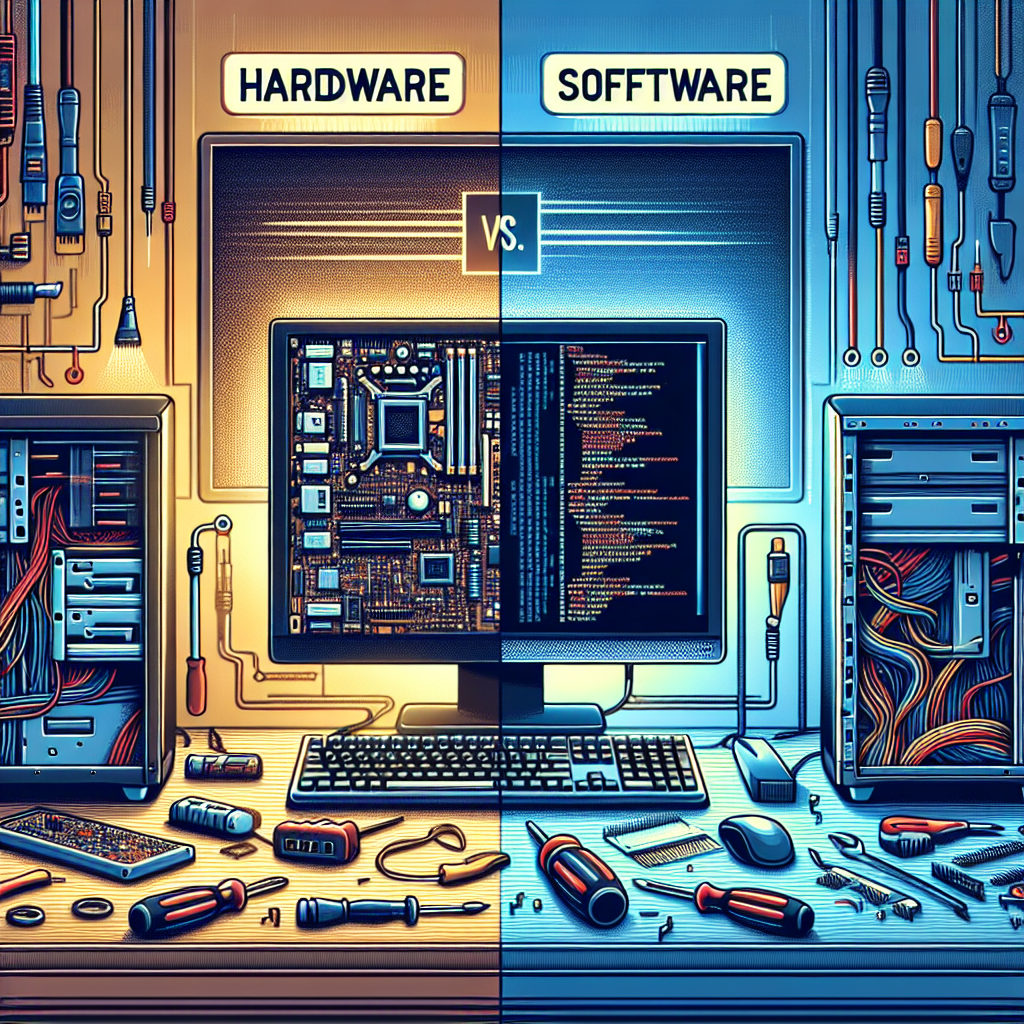
In the realm of computer systems, issues can emerge from a multitude of sources, primarily classified into two broad categories: hardware and software. Understanding the distinction between these two types of problems is crucial for effective troubleshooting and maintaining optimal system performance. This article aims to clarify the differences, provide guidance on troubleshooting, and offer practical solutions to common issues encountered by users.
What is Hardware?
Hardware refers to the physical components of a computer system or any electronic device. This includes parts like the motherboard, CPU (Central Processing Unit), RAM (Random Access Memory), hard drives, graphics cards, and peripherals such as keyboards, mice, and printers. When discussing hardware issues, we typically refer to problems arising from these tangible components.
Common Hardware Issues
-
Power Problems: This could involve a faulty power supply, dead battery, or a malfunctioning power outlet.
-
Overheating: Overheating components can cause a system to slow down, freeze, or turn off unexpectedly, often due to dust buildup or malfunctioning cooling systems.
-
Hardware Failures: Failures can occur due to manufacturing defects, wear and tear, or physical damage, leading to issues like disk drive failures or faulty RAM.
- Peripherals Not Working: Problems can arise with external devices like printers or scanners due to driver issues or connectivity problems.
What is Software?
Software, on the other hand, refers to the set of instructions that tell the hardware how to perform specific tasks. This includes the operating system (Windows, macOS, Linux), applications (Microsoft Office, web browsers, video games), and system utilities. Software issues typically stem from bugs, compatibility problems, incorrect configurations, or malware.
Common Software Issues
-
Crashes and Freezes: Software can crash due to bugs, insufficient system resources, or conflicts with other software applications.
-
Performance Issues: Slow performance can be caused by poorly optimized software, low memory or storage space, and excessive background processes.
-
Installation Errors: Problems can occur during the installation of new applications due to incompatible versions, corrupted files, or disk space limitations.
- Malware and Virus Attacks: Malicious software can alter system functionality, steal data, or corrupt files, leading to a range of operational problems.
Troubleshooting Hardware Issues
Step 1: Identifying the Problem
To effectively troubleshoot hardware problems, start with a clear diagnosis. Listen for unusual noises, monitor system behaviors (like overheating), and pay attention to error messages. Here are some tips:
- Check for Power: Ensure the device is plugged in and the outlet is functioning. Use a different cable or outlet if necessary.
- Visual Inspection: Look for visible damage or loose connections on the hardware components.
Step 2: Isolating Components
Isolate each component to determine if it is working correctly. If a peripheral is malfunctioning, try it on a different device. For internal components:
- Run Diagnostic Tools: Many manufacturers provide built-in diagnostics to check the health of hardware components.
- Memtest86 and Other Tools: Use software like Memtest86 to verify RAM integrity and tools from your hard drive manufacturer to check storage health.
Step 3: Replacing or Repairing
If you identify a faulty component, consider replacement or repair. Check for warranty coverage or consult a professional technician for extensive repairs.
Troubleshooting Software Issues
Step 1: Identifying the Symptoms
Software issues can manifest in various ways—application crashes, slow performance, or errors during operation. Start by taking note of:
- Error Messages: Document any error codes or messages that appear.
- Recent Changes: Consider any recent installations, updates, or changes to system settings.
Step 2: Basic Solutions
- Restart the Application or Computer: Sometimes, a simple restart can resolve temporary issues.
- Update Software: Make sure all applications and the operating system are up-to-date to ensure compatibility and security.
Step 3: Advanced Solutions
If basic solutions fail:
- Safe Mode: Booting your computer in Safe Mode can help identify software conflicts.
- System Restore: If a recent change caused a problem, use system restore points to revert to a previous state.
- Malware Scan: Use trustworthy antivirus software to scan for and eliminate any threats.
The Importance of Regular Maintenance
Regular maintenance can prevent many hardware and software issues:
- Clean Hardware: Dust can accumulate and cause overheating. Regularly clean your devices to keep them running smoothly.
- Backup Data: Always have backups in place to protect against data loss from hardware failures or software corruption.
- Update Regularly: Keep your software updated to minimize vulnerabilities and improve system stability.
Conclusion
Understanding the difference between hardware and software issues is vital for effective troubleshooting. By following systematic steps for diagnosis and resolution, users can minimize downtime and maintain their systems more efficiently. Whether dealing with tangible hardware components or navigating complex software problems, taking the time to understand the root cause can save time, money, and frustration in the long run.
FAQs
Q1: How can I tell if my computer’s problem is hardware-related?
A1: Look for signs such as unusual noises, physical damage to components, or failure to power on. If you encounter persistent issues after multiple software troubleshooting attempts, it’s likely hardware-related.
Q2: What is the first step in troubleshooting a software problem?
A2: Begin by gathering information about the problem. Take note of any error messages, symptoms, and recent changes made to your system.
Q3: Can software issues cause hardware problems?
A3: Yes, certain software issues, such as malware infections, can lead to excessive resource usage, potentially causing hardware overheating or failures.
Q4: Is it better to fix hardware issues myself or seek professional help?
A4: It depends on your comfort level and the complexity of the issue. For minor problems, DIY troubleshooting might be effective, but more significant issues, especially those requiring the opening of your device, should be handled by a professional.
Q5: How often should I perform maintenance on my computer?
A5: Regular maintenance should be performed every few months. However, more frequent dusting and updates may be necessary based on usage and environmental factors.