


10 Ways to Repair Your Laptop Now
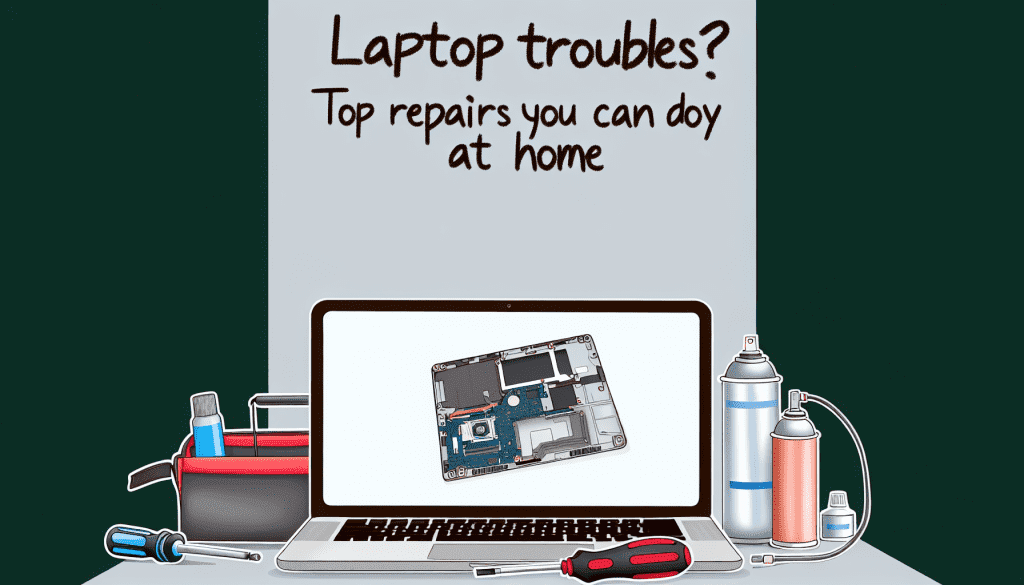
If you’ve ever had computer issues, you know how important it is to find reliable services for laptop repairs.
Laptops play a crucial role in our daily lives. We use them for work, entertainment, education, and staying connected. Like any device, however, laptop repairs can face issues that affect their performance.
Before spending money on costly repairs, know this: many common laptop problems can be fixed at home. In this guide, we’ll walk you through the top 10 DIY laptop repairs. Save time, save money, and keep your laptop running smoothly!
Battery Issues
Symptoms:
Your laptop won’t hold a charge, drains quickly, or fails to power on.
Solution:
Before concluding that you need a new battery, try a few simple things. First, check the power adapter and ensure it’s securely connected. Next, clean the battery contacts with a cotton swab and isopropyl alcohol. You can also try recalibrating your battery by fully charging it and letting it drain completely before charging it again.
If these steps don’t work, you might need to replace the battery. Many laptops have removable batteries, making it easy to swap out an old one for a new one.
Overheating
Symptoms:
Your laptop gets excessively hot, the fan is loud, or it shuts down unexpectedly.
Solution:
Overheating is often due to dust buildup in the vents and fans. Start by shutting down your laptop and using compressed air to blow out the dust from the vents. Additionally, consider using a cooling pad to help maintain airflow. If the overheating persists, you might need to apply new thermal paste to the CPU.
Slow Performance
Symptoms:
Applications take longer to load, and tasks lag.
Solution:
A sluggish laptop can usually be improved with some maintenance. Begin by uninstalling unused programs, running disk cleanup, and defragmenting your hard drive (if you’re using a traditional HDD). You might also want to check for malware using software like Malwarebytes. Finally, consider upgrading your RAM or swapping your HDD for an SSD for significant performance boosts.
Cracked Screen
Symptoms:
Visible cracks or dead pixels on your display.
Solution:
If your laptop screen is cracked, you have a couple of options. For minor issues, you can purchase a screen protector that minimizes the visibility of the cracks. However, for severe damage, it’s best to replace the screen. You can find screen replacement kits online with all the necessary tools and instructions.
Keyboard Malfunction
Symptoms:
Certain keys don’t respond, or the keyboard is unresponsive.
Solution:
First, check if there’s debris under the keys. You can carefully pop off the keys and clean beneath them. If keys are still unresponsive, it may be necessary to replace the keyboard. Find the appropriate replacement and follow online tutorials to guide you.
Wi-Fi Connectivity Problems
Symptoms:
You cannot connect to Wi-Fi or have inconsistent connections.
Solution:
Start by restarting your laptop and router. If that doesn’t work, check the laptop settings to ensure Wi-Fi is enabled. You can also try removing the network from your saved list and reconnecting. If problems continue, consider updating your network drivers through the Device Manager.
No Sound
Symptoms:
Audio is missing from speakers or headphones.
Solution:
Check your audio settings to ensure the volume isn’t muted and the correct playback device is selected. Sometimes, a quick restart can also fix the audio issue. If it persists, try updating your sound drivers or running the audio troubleshooter found in Windows settings.
USB Port Problems
Symptoms:
USB devices aren’t being recognized or don’t work.
Solution:
Test your USB devices on other computers to ensure the problem isn’t with the device itself. If the USB ports on your laptop are the issue, try cleaning them with compressed air. If that doesn’t work, you may need to update the USB drivers through Device Manager.
System Crashes or Blue Screen of Death (BSOD)
Symptoms:
Frequent crashes or blue screens with error messages.
Solution:
Various issues, including hardware failures and incompatible software, can cause the BSOD. Start by booting your laptop in “Safe Mode” and removing any recently installed software or drivers. You can also run diagnostic tools provided by your operating system. If the issue persists, consider running a memory test to check for RAM issues.
Hard Drive Failure
Symptoms:
Strange noises from the drive, slow performance, or frequent errors.
Solution:
If you suspect your hard drive is failing, back up your data immediately. You can check challenging drive health using tools like CrystalDiskInfo. If it is on its last legs, replacing the hard drive with an SSD can enhance performance, but note that this may require reinstallation of your operating system or data recovery.
FAQs
How can I tell if my warranty covers laptop repairs?
Review your warranty documents or visit the manufacturer’s website. Be aware that attempting repairs yourself might void the warranty in some cases.
What tools do I need for DIY laptop repairs?
A basic toolkit should include small screwdrivers, a plastic spudger, tweezers, and compressed air. Additional tools or cleaning supplies might be required for specific repairs.
Is it safe to open the laptop?
Yes, but proceed with caution. Always turn off your laptop completely and disconnect the battery (if removable) before opening. Use antistatic precautions to avoid damaging components.
How can I troubleshoot if my laptop won’t turn on?
First things first, let’s tackle those power issues! Ensure your charger is in good condition, connections are secure, and watch those power indicator lights—they should be glowing! If it still won’t turn on, investigate potential battery or motherboard problems.
What if I don’t feel comfortable making repairs?
If unsure, consult a professional. Some repairs require specialized skills; attempting them without expertise could worsen the issue.
Many laptop issues can be fixed at home with patience and essential tools. From minor problems like slow performance to significant topics like screen damage, DIY repairs can save you money. Always back up your data before starting, and consult a professional when necessary.
Next step
Ready to see what managed IT would cost your business?
Calculate your MSP base in about a minute, review the written agreement, and sign online, or call the Winter Garden team and talk it through first.

